EVIA Paradigma

Draw a program.
Pick its language.

EVIA Paradigma is visual programming for people who like to see what the machine gets. The diagram is the program; the language is a setting. Wire blocks on a canvas, run them, then choose what they become: C99 to C++20 built with Clang or GCC, an Arduino sketch, bare-metal C for an AVR or PIC32 chip, or SystemVerilog, Verilog or VHDL for an FPGA.

Download 0.6.7 Source on GitHub

Windows and Linux; macOS builds will return later. Free and open source, MIT license.

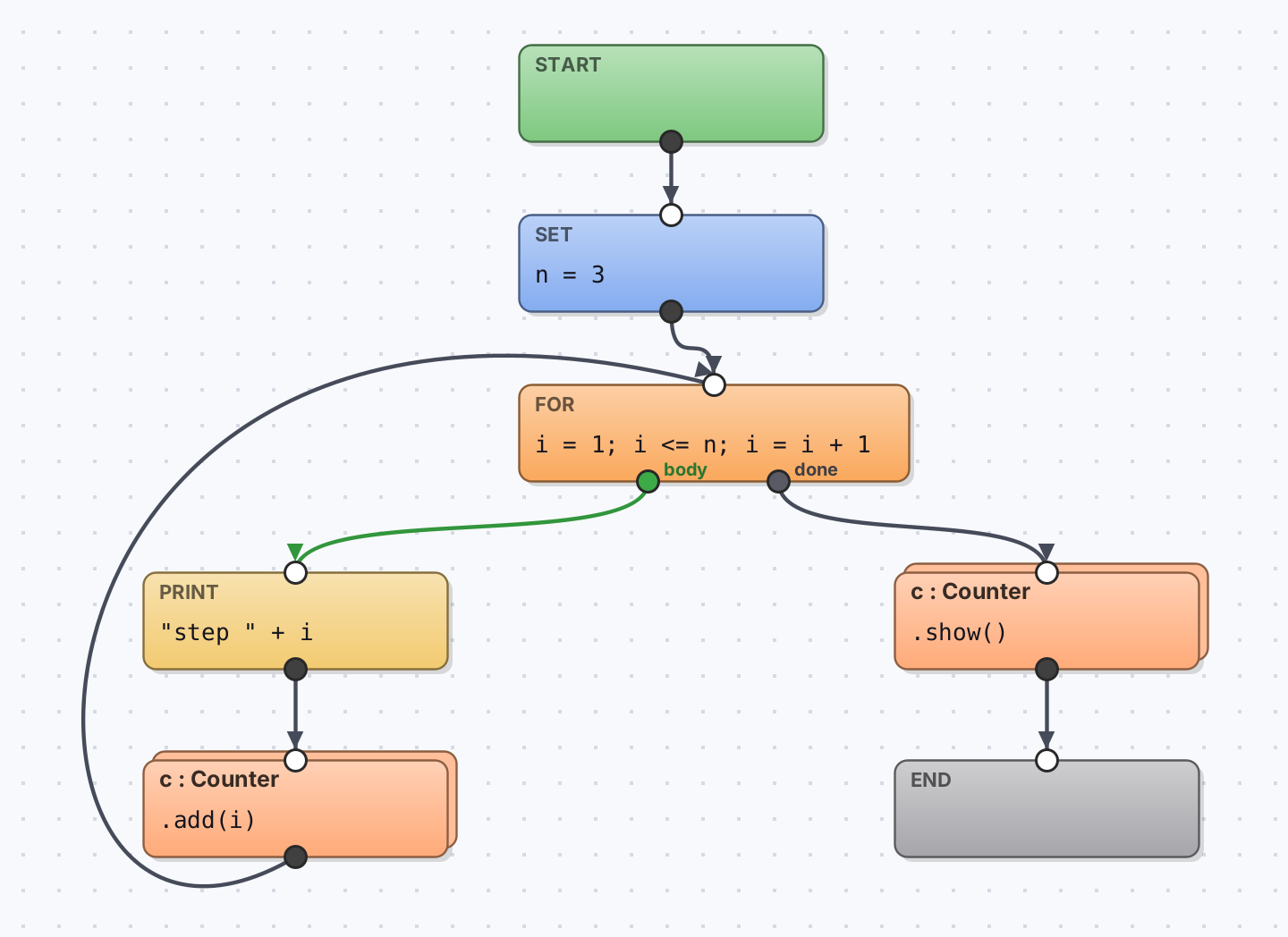
Block diagram: Start, Set n = 3, a For loop from 1 to n that prints the step and calls c.add(i) on a Counter object, then c.show() and End.

      
The diagram on the left, as the generator writes it. All 32 versions print the same output as the built-in interpreter.

What it does

Programs are blocks and wires

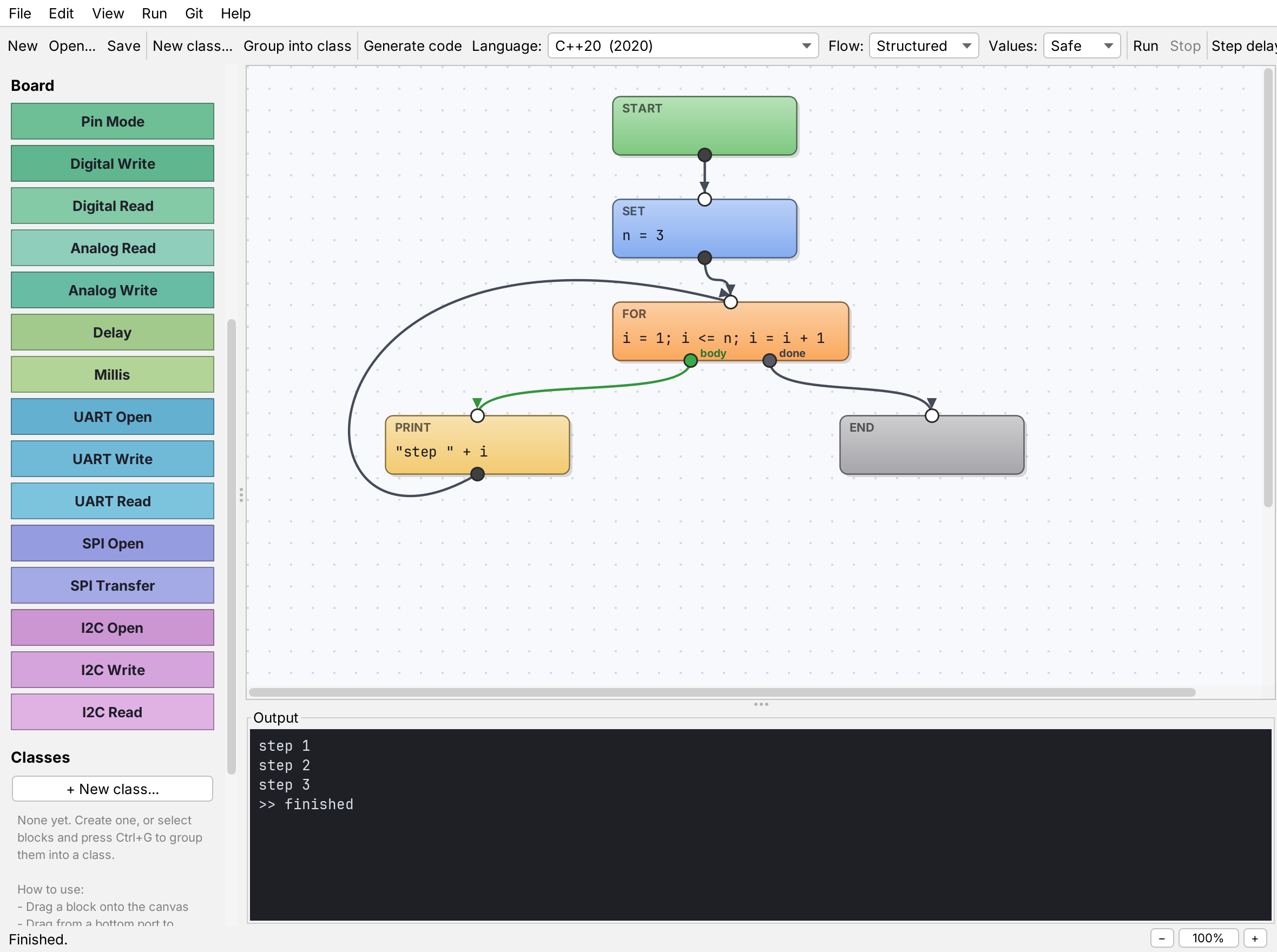
Start, Set, Input, Print, If/Else, For, While and Do-While are blocks; the wires between them are the control flow. Press Run and the active block lights up as it executes. Expressions work on numbers and text, with && || !, comparisons and the usual arithmetic.

A For loop wired from blocks, and its output: step 1, step 2, step 3.

Classes, objects and modules

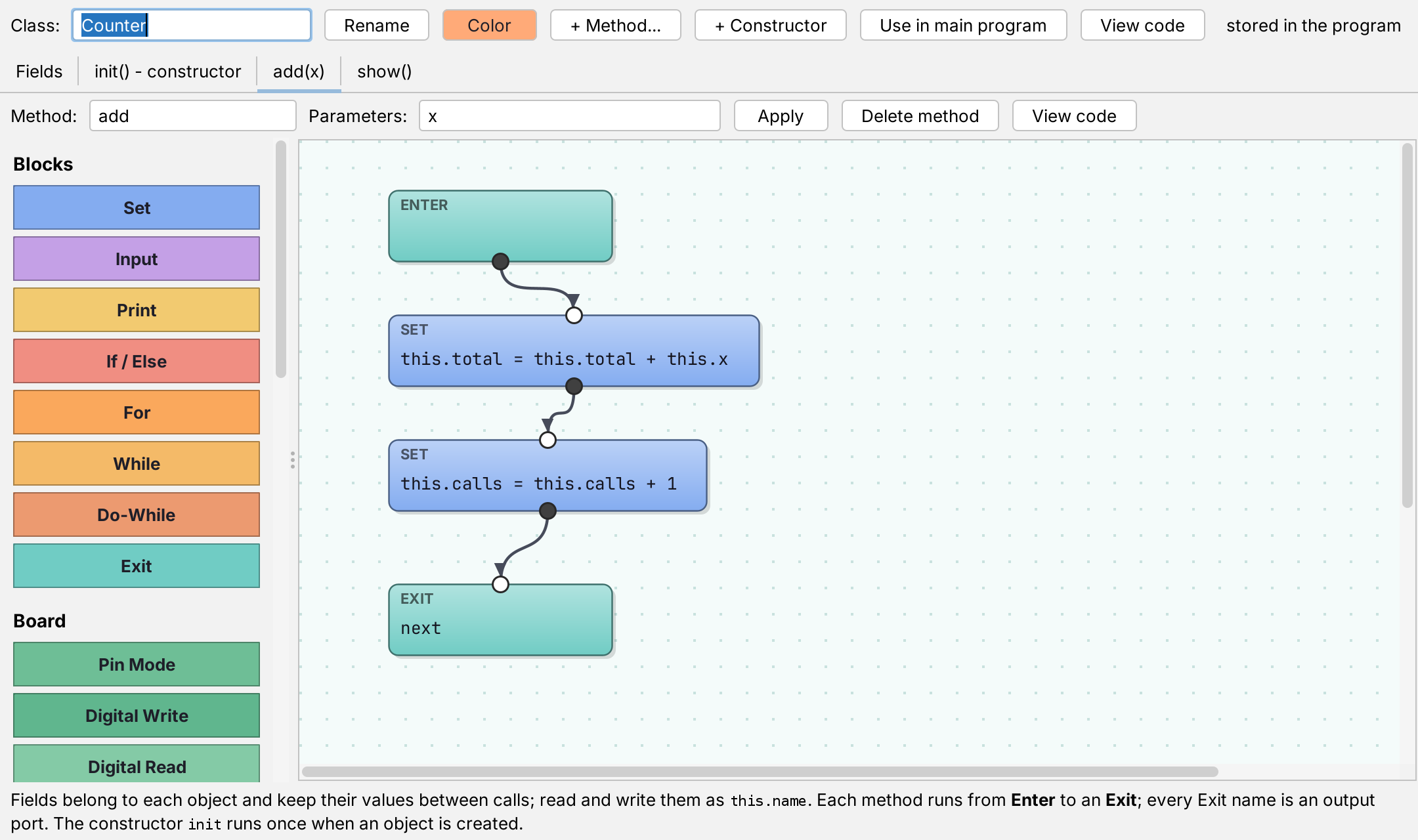
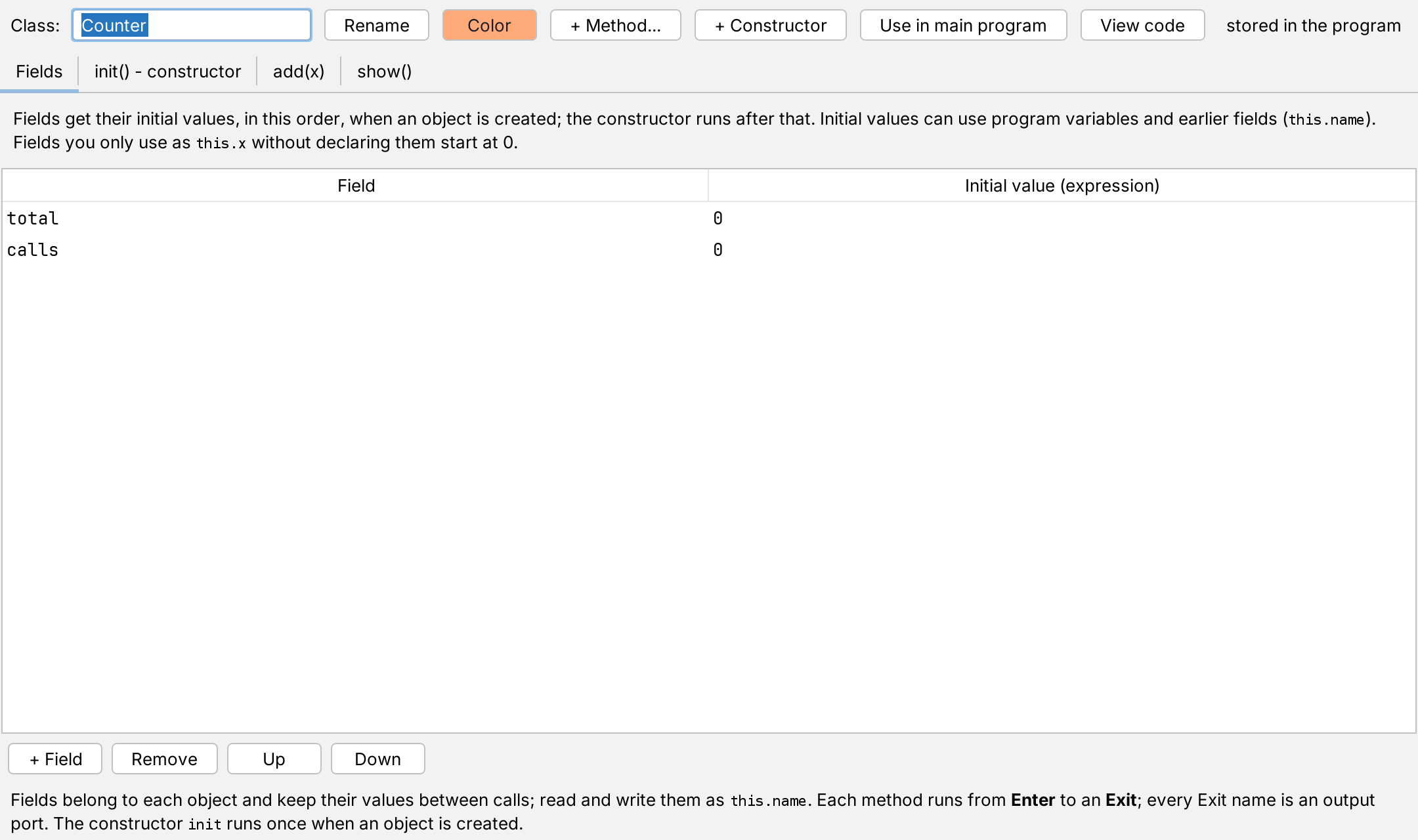
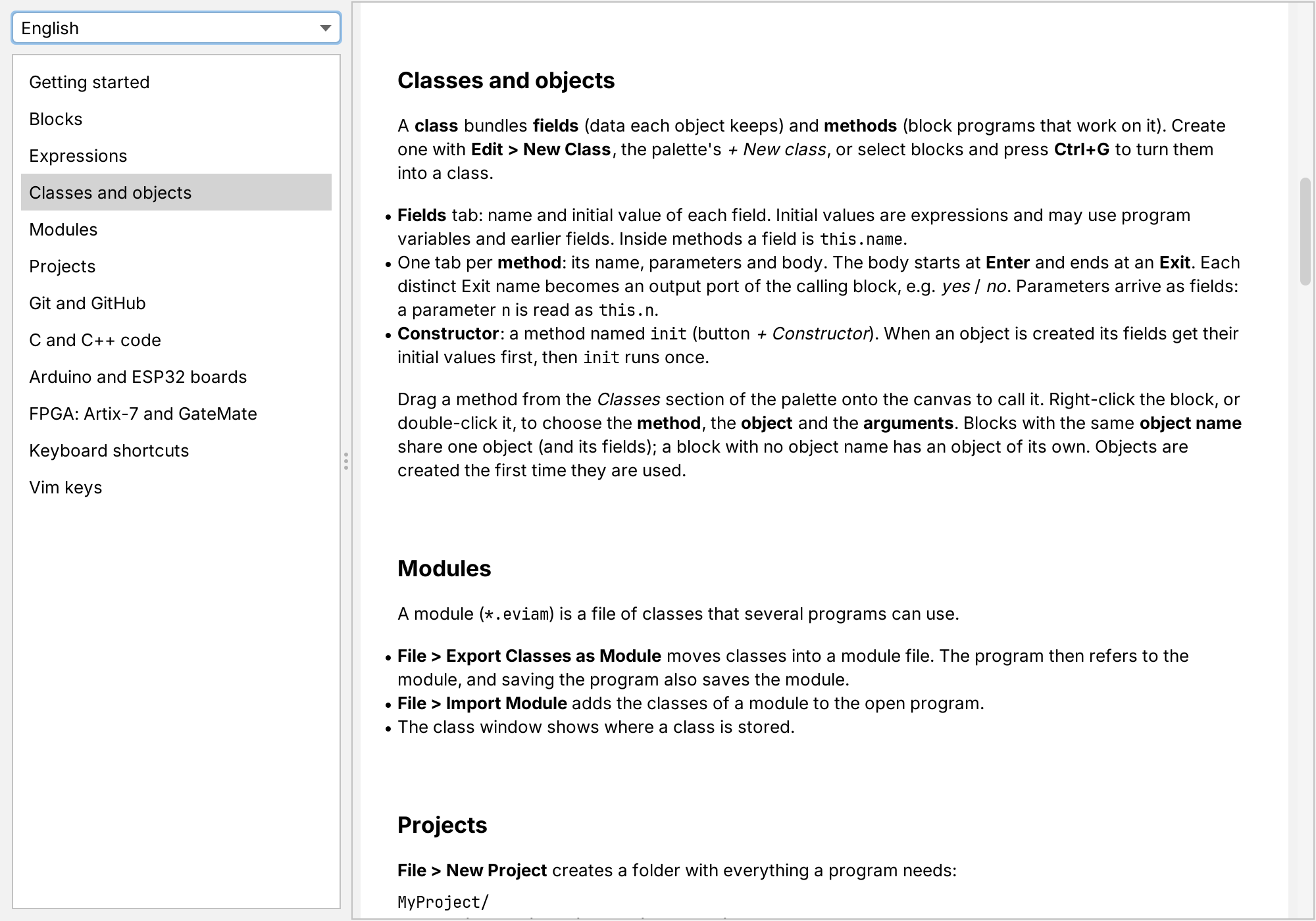
A class has fields with initial values, a constructor and methods, and each method is its own block diagram from Enter to Exit. Every Exit becomes an output of the calling block. Blocks that use the same object name share one object. Save classes as modules (.eviam) and import them into other programs.

Class window for Counter: tabs for fields, constructor and methods; the add(x) method adds x to this.total.

One diagram, fourteen languages

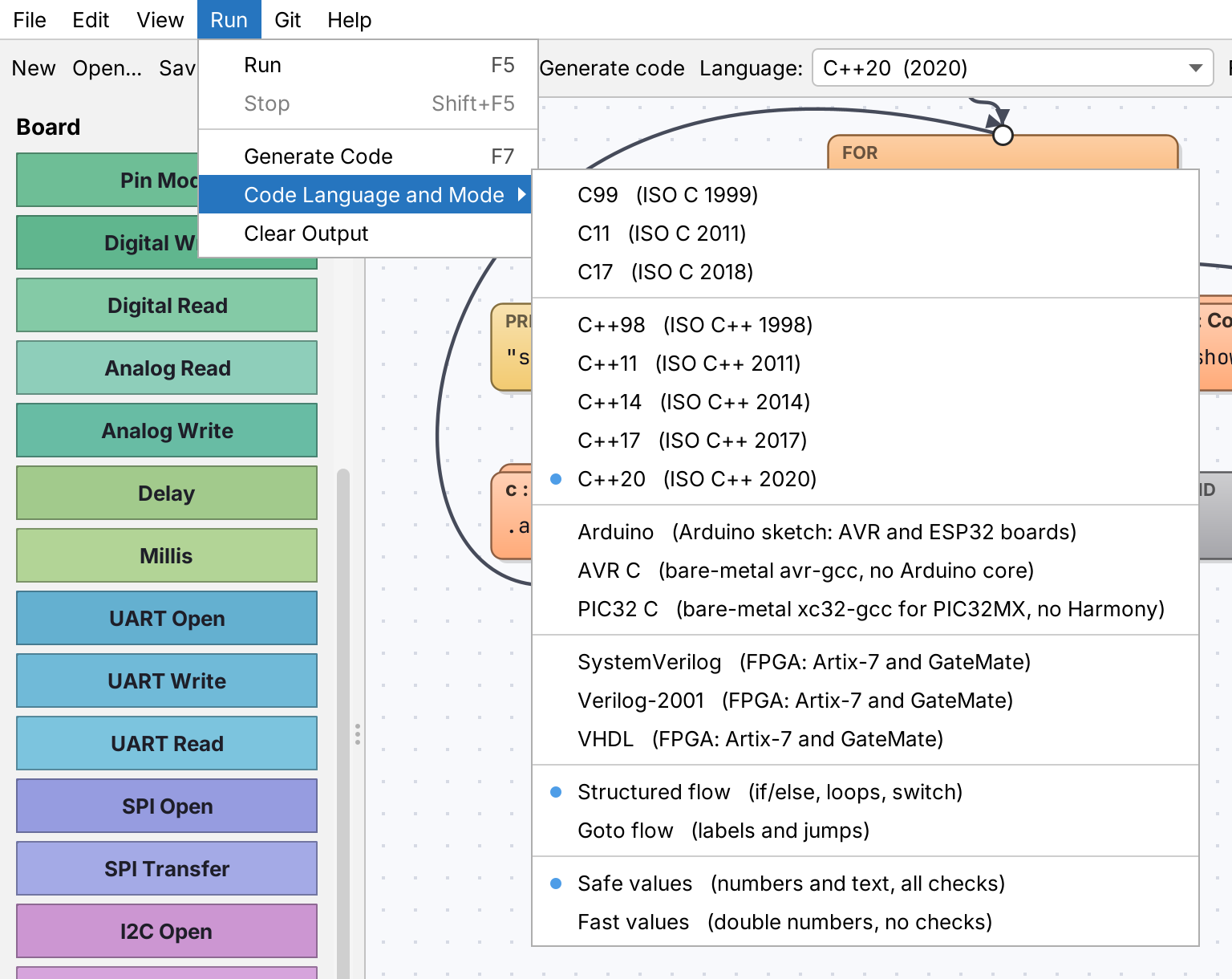
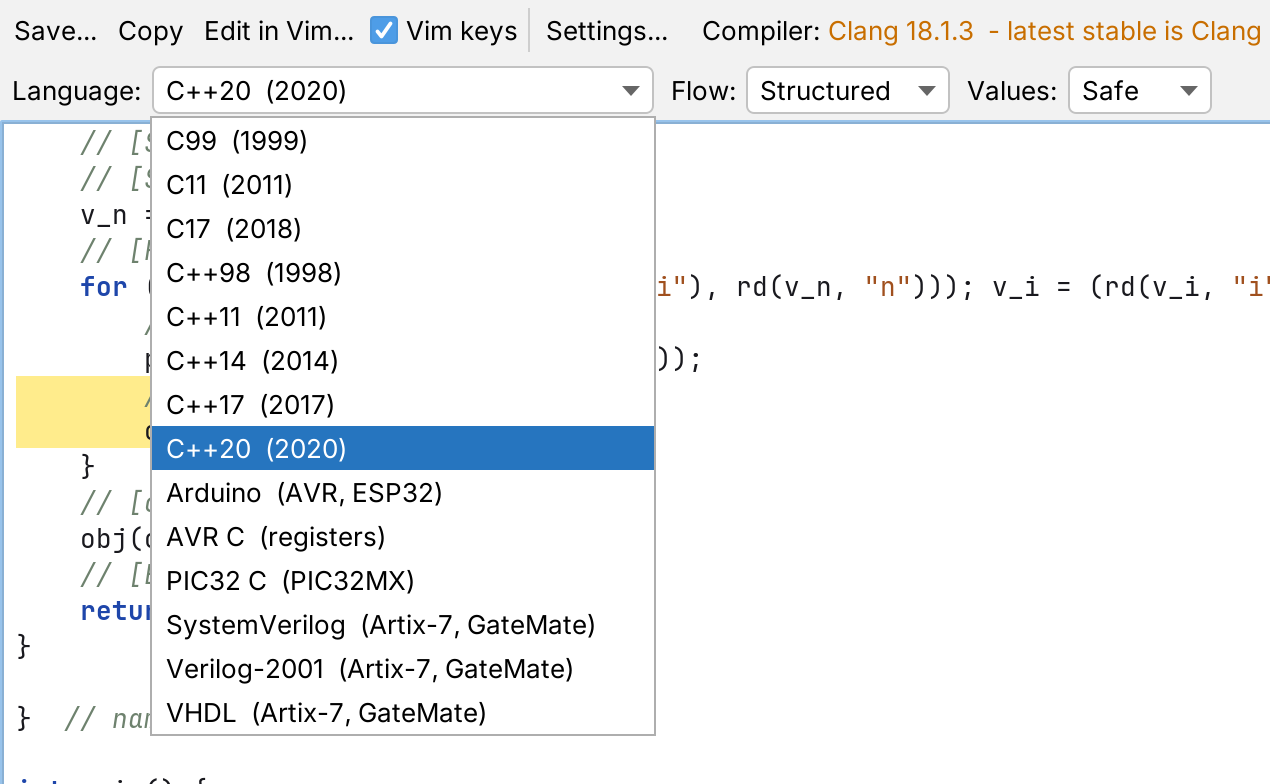
A diagram says what the program does, not what it is written in. The same canvas becomes eight C and C++ standards, an Arduino sketch, bare-metal AVR or PIC32 C, or SystemVerilog, Verilog-2001 and VHDL for an FPGA, and Run executes the diagram itself, so you can compare its output with any of them. Where a target cannot keep a block, the error names that block instead of quietly changing what the program means.

The Code Language and Mode menu, open: C99 to C++20, Arduino, AVR C, PIC32 C, SystemVerilog, Verilog-2001 and VHDL, with the flow and values below them.

Eight C and C++ standards, two ways to write them

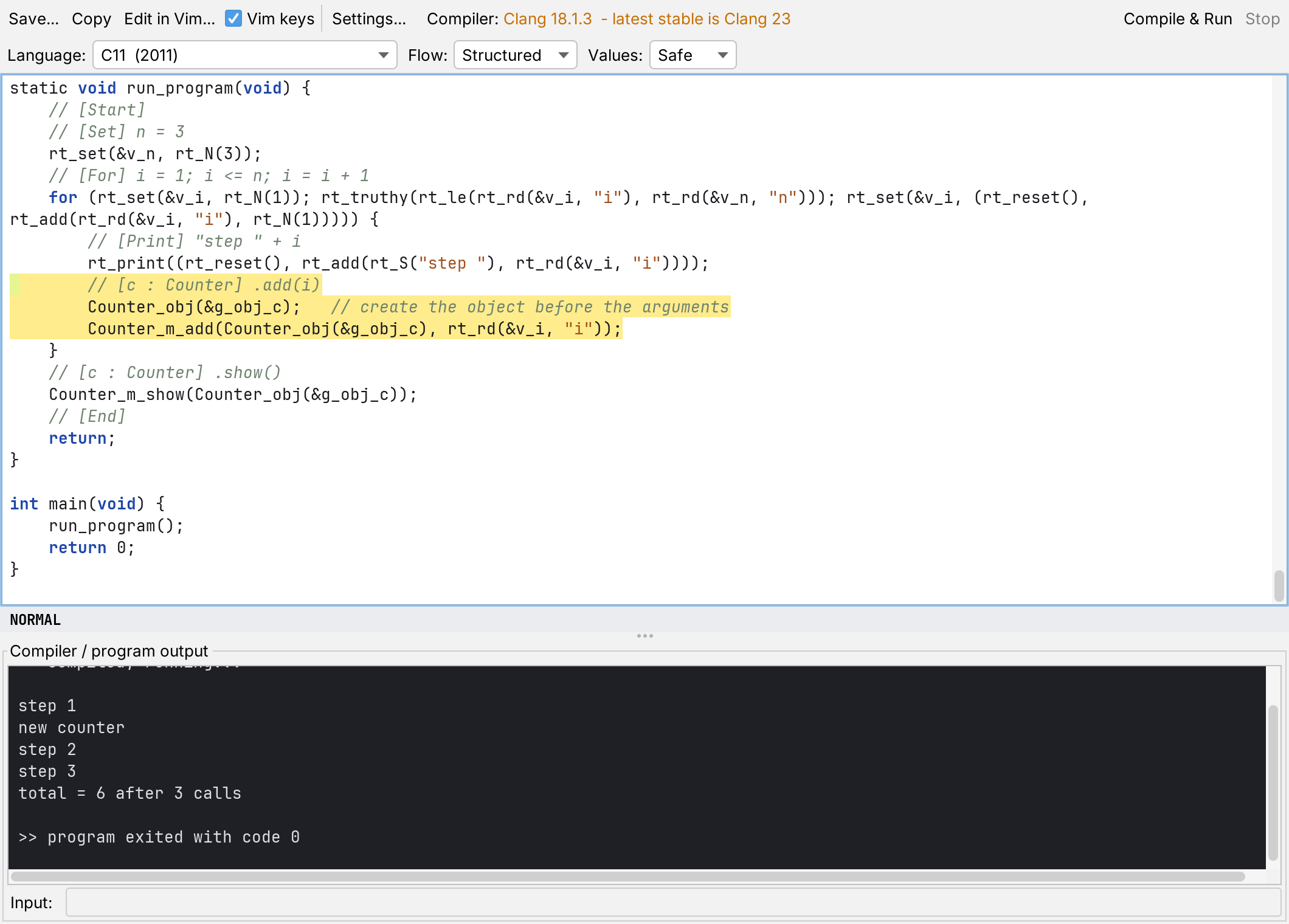
Pick C99, C11, C17, C++98, C++11, C++14, C++17 or C++20 from the toolbar. Structured writes if/else, loops and switch; Goto turns every block into a label and every wire into a jump. Safe values keep text and every check of the interpreter; Fast values are plain doubles with no runtime checks. The C runtime contains only what your program uses, so it compiles cleanly with -Wall -Wextra -Wpedantic -Werror.

Code window showing the program as C11, compiled with Clang and run.

See the code of any block

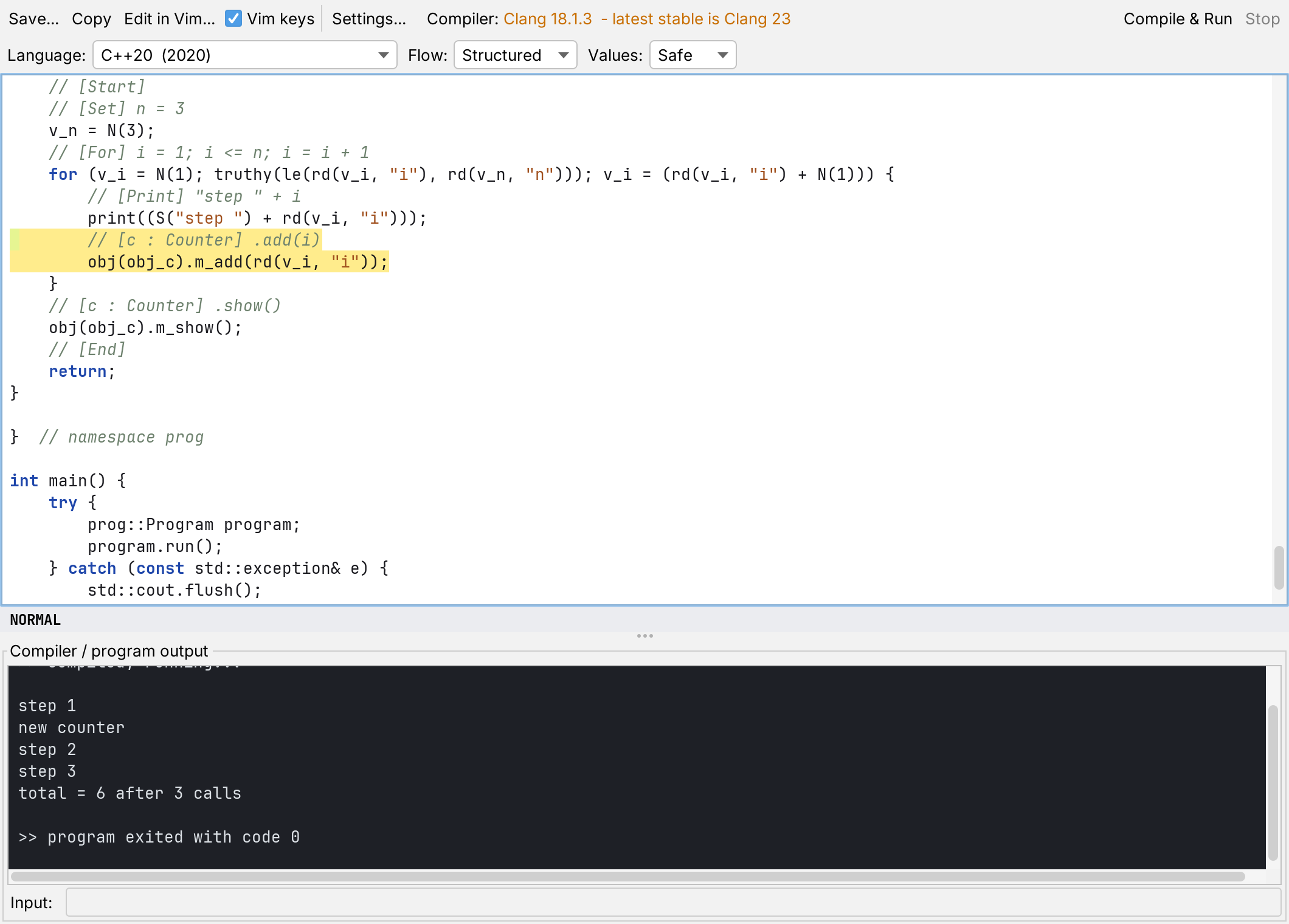
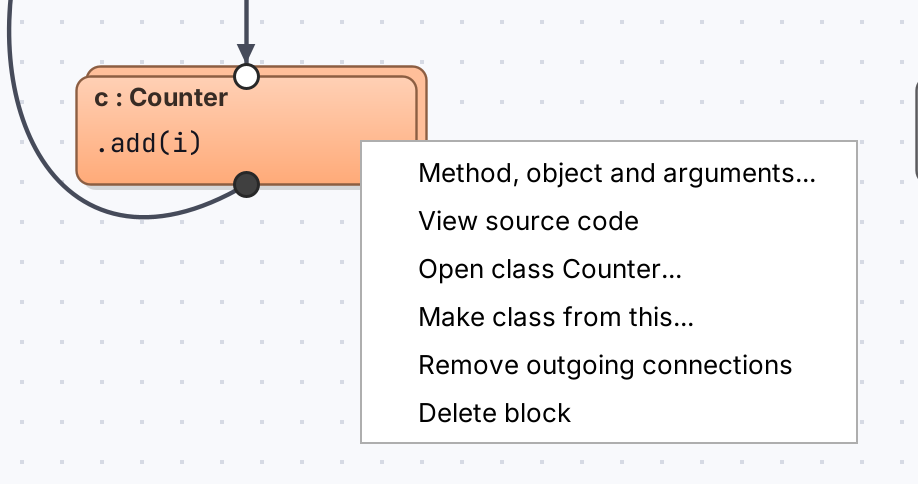
Right-click a block and choose View source code: the generated file opens with exactly the lines that block became highlighted. It works for a whole method or class too, in whichever language you chose. Compile & Run builds it with Clang or GCC right there; on Windows the app installs llvm-mingw or WinLibs GCC for you, no Visual Studio needed.

Generated C++ with the lines of the c.add(i) block highlighted, compiled with Clang and run.

Arduino and ESP32 boards

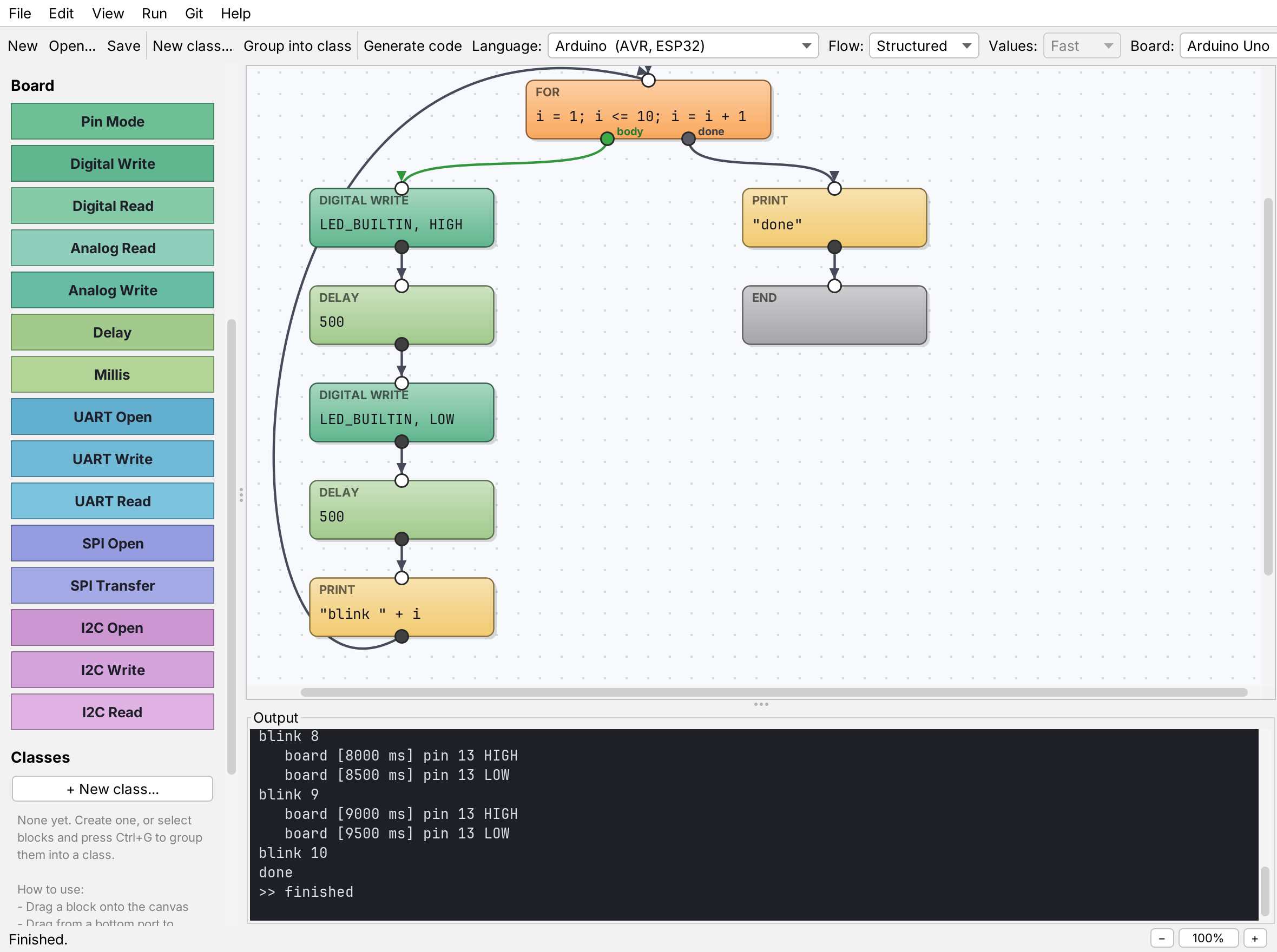
Pin Mode, Digital Write and Read, Analog Read and Write, Delay and Millis are blocks too. One Arduino sketch builds for the Uno, Nano, Mega 2560, Leonardo, Micro and Pro Mini, and for the ESP32, ESP32-S2, -S3, -C3, -C6 and -H2. UART, SPI, I2C and MQTT are blocks as well. Run simulates an Uno on your computer, with every pin change in the output, so you can try a program before there is a board on your desk.

The blink example with the Board blocks in the palette; the output shows the simulated pin 13 switching every 500 ms.

Bare metal, down to the registers

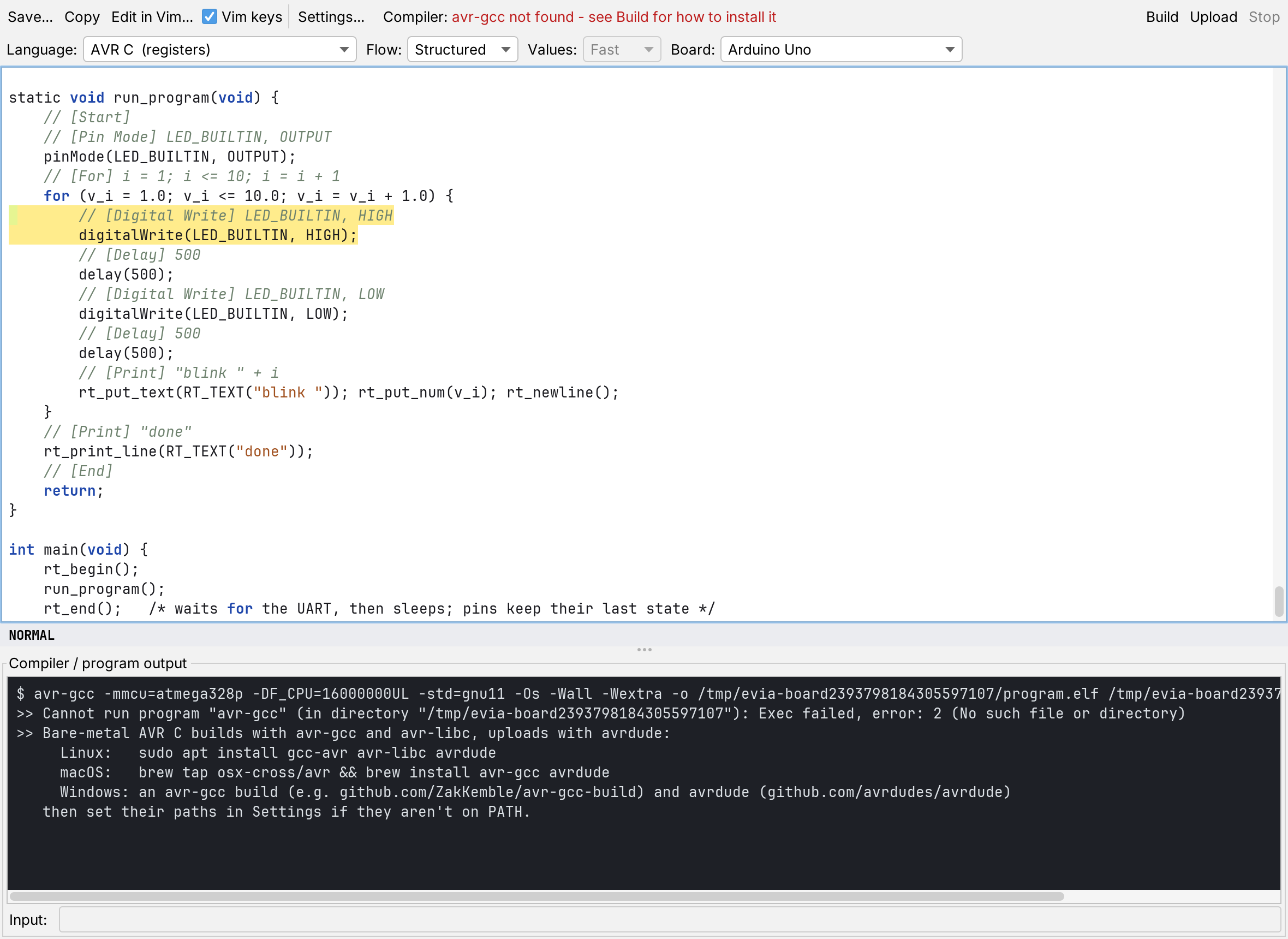
AVR C writes the program for the ATmega328P, ATmega2560 or ATmega32U4 without the Arduino core: ports, timers, PWM, the ADC and the UART are set up in plain C that you can read. avr-gcc builds it in about 4 KB, and Upload sends it to the board with avrdude. Every example is run in the simavr simulator and checked against the interpreter.

New in 0.5: PIC32 C does the same for nine PIC32MX chips with Microchip's XC32, and UART, SPI and I2C are blocks, in Run and in all three board languages. The PIC32 code is checked against Microchip's device headers, but has not yet been built with XC32 or run on a chip.

New in 0.6: FPGA support. SystemVerilog, Verilog-2001 and VHDL turn the same diagram into hardware for Artix-7 (Nexys A7, Arty A7, Basys 3) and Cologne Chip GateMate boards. The output is simulated against Run and synthesised with open-source tools, but has not been run through Vivado or loaded onto a board.

New in 0.6.5: MQTT. Five blocks publish a program's numbers to a broker and read commands back: on a PIC32MX with a WiFi module on UART2, on an ESP32 with its own WiFi, and in Run against a broker on your computer. Two examples come with it, one of them for the PIC32 Ethernet Starter Kit II. The generated client is checked against a real broker; no WiFi module or chip was part of that. New in 0.6.7: MQTT can also leave through the chip's own Ethernet port on the MX695, the MX795 and the starter kit, as an MPLAB X Harmony application — experimental, and not yet built against real Harmony. The interface itself is now in English, Russian or Armenian too, chosen in Settings.

The blink program as bare-metal AVR C, built with avr-gcc 14 for the Arduino Uno: 4032 bytes of code.

Zoom and move the canvas with the mouse

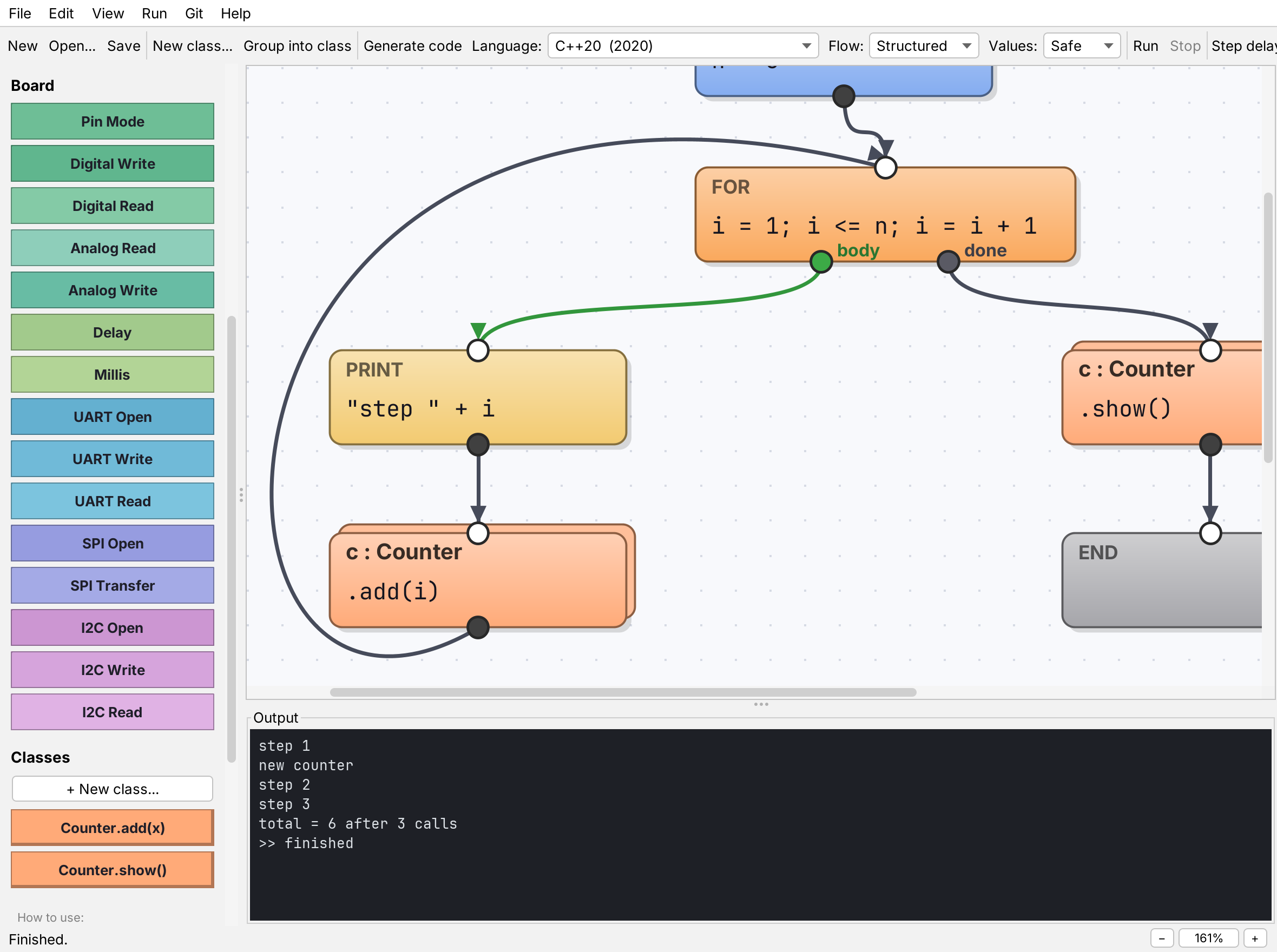
Turn the wheel over a diagram to zoom between 25% and 300%, toward the pointer. Blocks, text and wires stay sharp, and you can keep editing at any size. Ctrl+0 returns to 100%, Ctrl+9 fits the whole diagram. New in 0.6.1: hold the middle mouse button and drag to move the canvas, from empty space or from a block.

The diagram zoomed in to 161 percent.

Projects, Git and GitHub

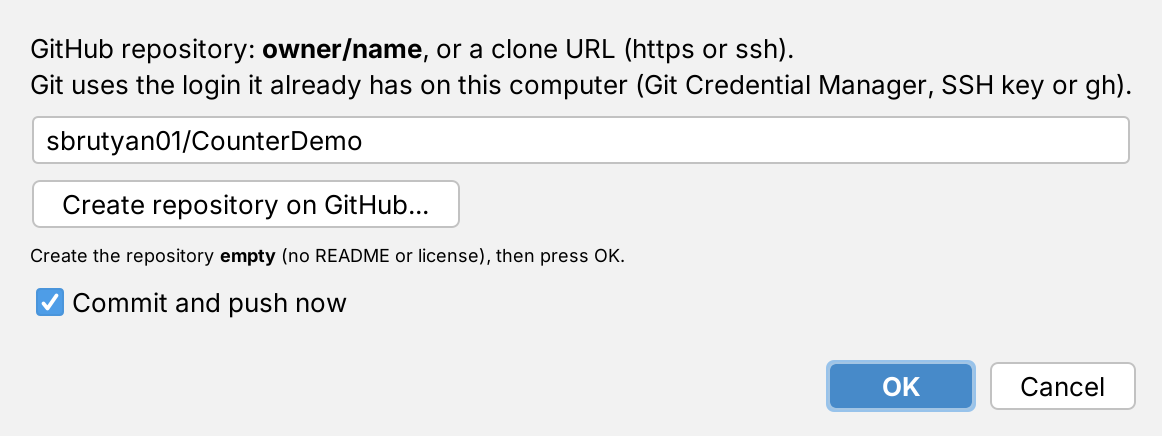
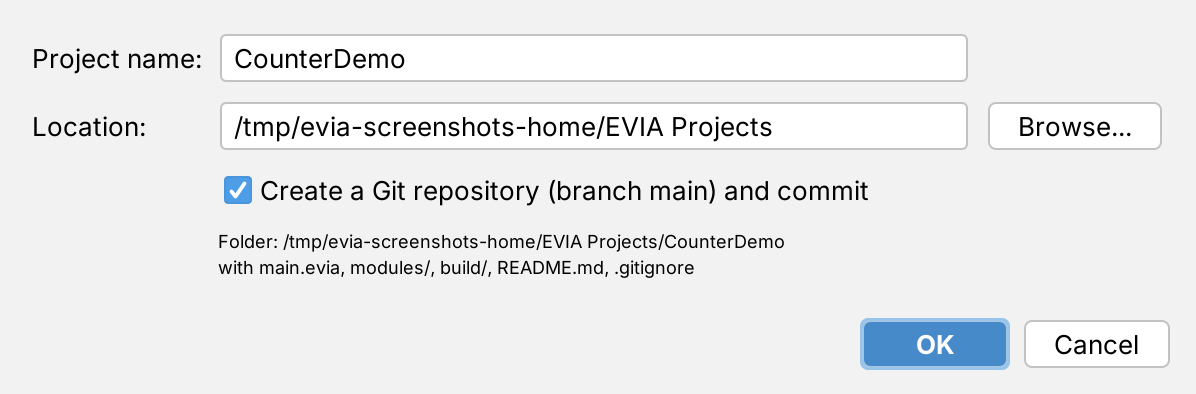
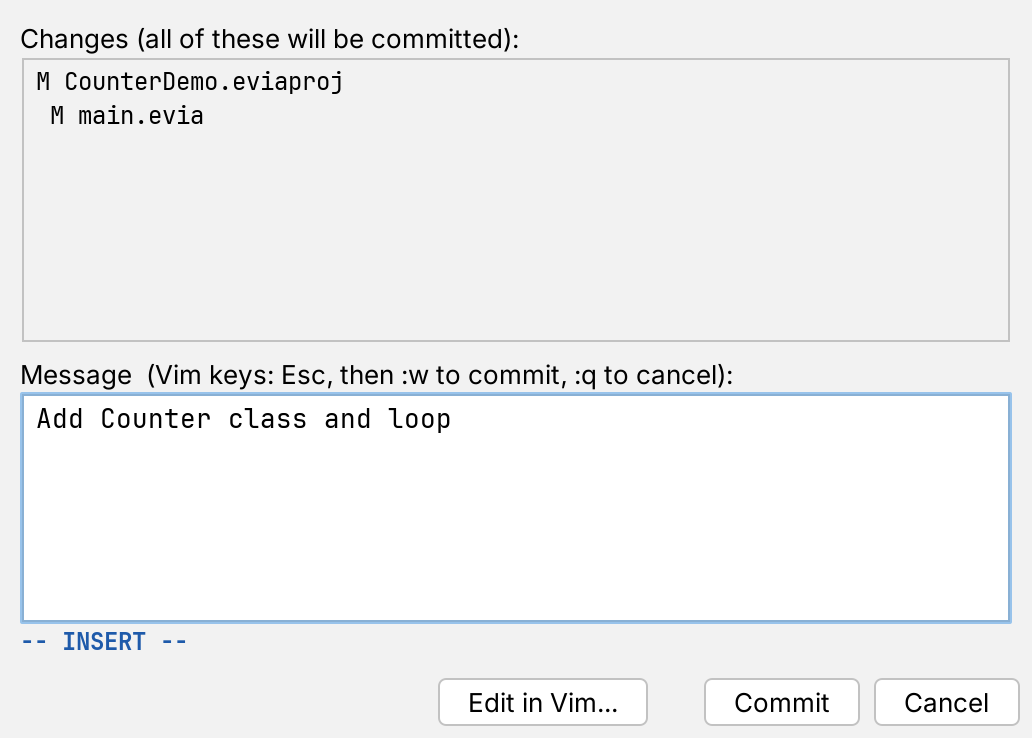
File, New Project creates a folder with the program, a modules folder, a README and a Git repository. Commit, push and pull from the Git menu; Connect to GitHub publishes the project using the login your git already has. The app never asks for or stores a password.

Connect to GitHub dialog with the repository name sbrutyan01/CounterDemo.

Your first program in eight steps

The full walk-through, with every screenshot, is a PDF in seven languages: English, Русский, Հայերեն, Deutsch, 简体中文, 繁體中文, 日本語. It is also under Help, Tutorial in the app, and in the README.

  1. Create a project

    File, New Project. Keep Create a Git repository checked.

  2. Build a loop

    Drag Set, For and Print onto the canvas, wire them, press Run.

  3. Create a class

    Edit, New Class: give Counter the fields total and calls.

  4. Use the class

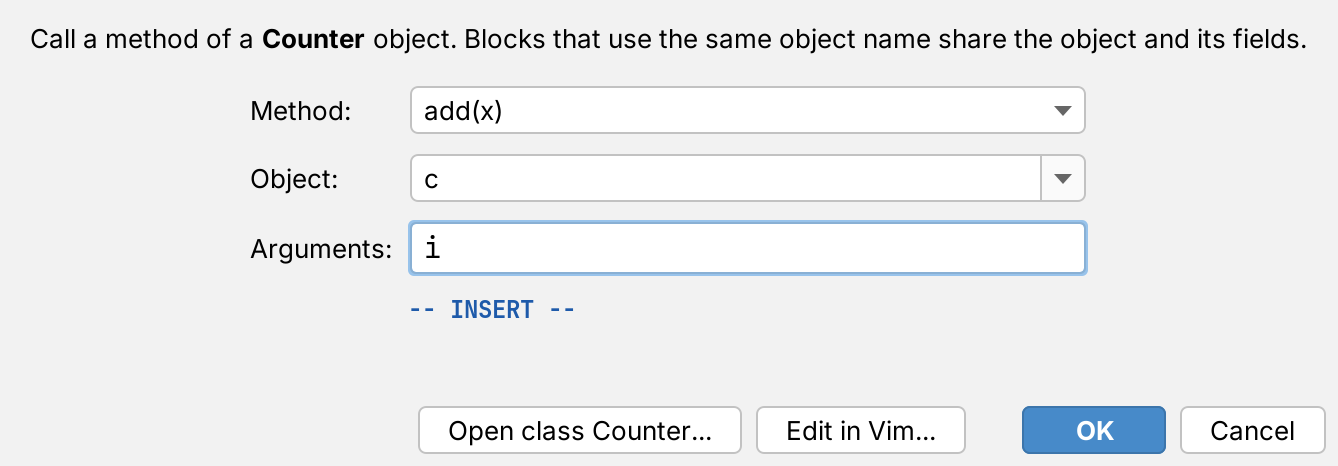
    Drag Counter.add(x) into the loop and name its object c.

  5. See the code

    Right-click a block, View source code.

  6. Choose a language

    Switch to C11 or any C++ standard; the code is generated again.

  7. Commit and publish

    Git, Commit, then Connect to GitHub.

  8. Keep going

    Modules, examples and the guide (F1).

Your first FPGA program in four steps

The same blink diagram becomes hardware for Artix-7 and GateMate boards. The full tutorial, step 10, is in the PDF above, and the guide has an FPGA topic (F1).

  1. Pick a language and a board

    Language: SystemVerilog, Verilog-2001 or VHDL. Board: Nexys A7, Arty A7, Basys 3, or a GateMate board.

  2. Open the Blink example

    File, Open Example, FPGA Boards, Blink. Pins are names such as LED0, SW3, BTNC and JA1.

  3. Generate code

    Press F7. The pin constraints are in the first comment, and the command line writes them as a separate file.

  4. Build and upload

    Vivado or the open-source tools, chosen in Settings. Upload programs the board.
java -jar evia-paradigma.jar --gen examples/fpga/blink.evia --lang sv --board nexys-a7-100t -o blink.sv
# writes blink.sv and blink.xdc
java -jar evia-paradigma.jar --gen examples/fpga/blink.evia --lang vhdl --board olimex-gatemate -o blink.vhd
# writes blink.vhd and blink.ccf

Checked against the interpreter in simulation, and synthesised with open-source tools. Not yet run through Vivado or on a real board.

Download EVIA Paradigma 0.6.7

Each installer brings its own Java runtime, so nothing else needs to be installed. To compile the generated code you need Clang or GCC (the app sets either up on Windows).

SystemFileNotes
Windows 10 / 11, x64 EVIA-Paradigma-0.6.7-windows-x64.exe Not code-signed yet: on the SmartScreen warning choose More info, Run anyway.
Ubuntu 22.04+ / Debian 12+ evia-paradigma_0.6.7_amd64.deb sudo apt install ./evia-paradigma_0.6.7_amd64.deb
Any system with Java 25 evia-paradigma-0.6.7.jar java -jar evia-paradigma-0.6.7.jar

All releases and release notes

Tested against its own interpreter

On every change, CI generates every example and test program in all 32 combinations of language, flow and values, compiles it with warnings as errors, runs it, and compares stdout, stderr and the exit code with the interpreter.

WhereCompilerIdentical to the interpreter
Linux, all 8 C and C++ standardsClang 23416 of 416
Linux, all 8 C and C++ standardsGCC 13416 of 416
Windows, C99, C17, C++98, C++14, C++20llvm-mingw Clang 23, static260 of 260
Windows, C99, C17, C++98, C++14, C++20WinLibs GCC 16, static260 of 260
Board examples, bare-metal AVR C in simavr (ATmega328P, 2560, 32U4)avr-gcc 1430 of 30
Arduino Uno and Mega 2560 sketches in simavrarduino-cli, arduino:avr15 of 15
FPGA designs in simulation (SystemVerilog, Verilog-2001, VHDL)Icarus Verilog, GHDL27 of 27

The Arduino sketches are also built for all 12 boards, ESP32 included (70 builds, no warnings). The PIC32 examples are compiled syntax-only against Microchip's device headers (144 of 144). Every FPGA example and test is synthesised with yosys for Artix-7, and the GateMate designs are placed, routed and packed into bitstreams; Vivado, openXC7 and real boards are not part of CI. The MQTT client is compiled on the build machine and run against a real broker. Plus checks of the application, modules, projects, Git, and zooming and panning on a real window. See GitHub Actions.

Documentation

java -jar evia-paradigma.jar --run program.evia
java -jar evia-paradigma.jar --gen program.evia --lang c11 -o program.c
clang -std=c11 -O2 -o program program.c -lm